Free PG owner resource · Interactive calculator
PG occupancy calculator
This free PG occupancy calculator from EasyAavaas works out bed occupancy for a PG, hostel or co-living property: occupied beds ÷ beds available to rent × 100, the vacant beds left, a room-level view, and time-weighted occupancy for a month using bed-nights. Enter your own counts; everything is calculated in your browser. In the EasyAavaas app, occupancy updates from bed assignments as tenants move in and out.
By EasyAavaas Team · Updated
Calculate bed and room occupancy
Illustrative example counts are filled in. Replace them with yours. All calculations run on this page; nothing is uploaded or saved.
How PG occupancy is calculated
Bed occupancy % = occupied beds ÷ beds available to rent × 100. Both counts are whole beds on one stated date, and the result is shown to one decimal place.
- Numerator: beds with a current tenant on that date. A tenant on notice counts until they leave; a booking who has not moved in does not.
- Denominator: total beds minus beds out of use (closed for repairs or not offered). Always say which denominator you used, because 40 of 52 beds is 76.9% while 40 of 50 rentable beds is 80%.
- Period: a snapshot belongs to one date. A monthly figure needs the time-weighted method below.
- Zero capacity: if no beds are available to rent, occupancy is not defined. The calculator says so instead of showing 0%.
Example (illustrative): a PG has 52 beds, 2 are closed for repairs, and 40 have tenants. Beds available = 52 − 2 = 50, vacant beds = 10, and bed occupancy = 40 ÷ 50 × 100 = 80%.
Snapshot vs time-weighted occupancy
A snapshot counts beds on one date. Time-weighted occupancy counts how many nights beds were actually occupied during a period: occupied bed-nights ÷ available bed-nights × 100, where available bed-nights = beds available × nights in the period − bed-nights out of use.
Example (illustrative): in October (31 nights) a PG has 50 beds available, so 50 × 31 = 1,550 bed-nights. On 31 October, 40 beds are occupied, a snapshot of 80%. But several beds filled late in the month and one tenant left early:
| Bed | Stay | Nights occupied |
|---|---|---|
| 36 beds | Whole month | 36 × 31 = 1,116 |
| Bed A | Moved in on 11 Oct | 21 |
| Bed B | Moved in on 18 Oct | 14 |
| Bed C | Moved in on 25 Oct | 7 |
| Bed D | Moved in on 28 Oct | 4 |
| Bed E | Moved out on the morning of 10 Oct | 9 |
| Total | 1,171 |
Time-weighted occupancy = 1,171 ÷ 1,550 × 100 = 75.5%, lower than the 80% month-end snapshot because four of those beds were empty for part of October. Count nights, not days: the night a tenant moves in counts, the night after they move out does not.
Room-level vs bed-level occupancy
In shared rooms, counting rooms can hide empty beds. In the example, 18 of 20 rooms have at least one tenant (90%), but only 12 are full (60%), while bed occupancy is 80%. The 6 partly occupied rooms are where the vacant beds are.
- Use bed-level occupancy when each tenant pays for their own bed.
- Use room-level occupancy when a whole room is let to one payer, and report partly occupied rooms separately.
Occupancy in the EasyAavaas app
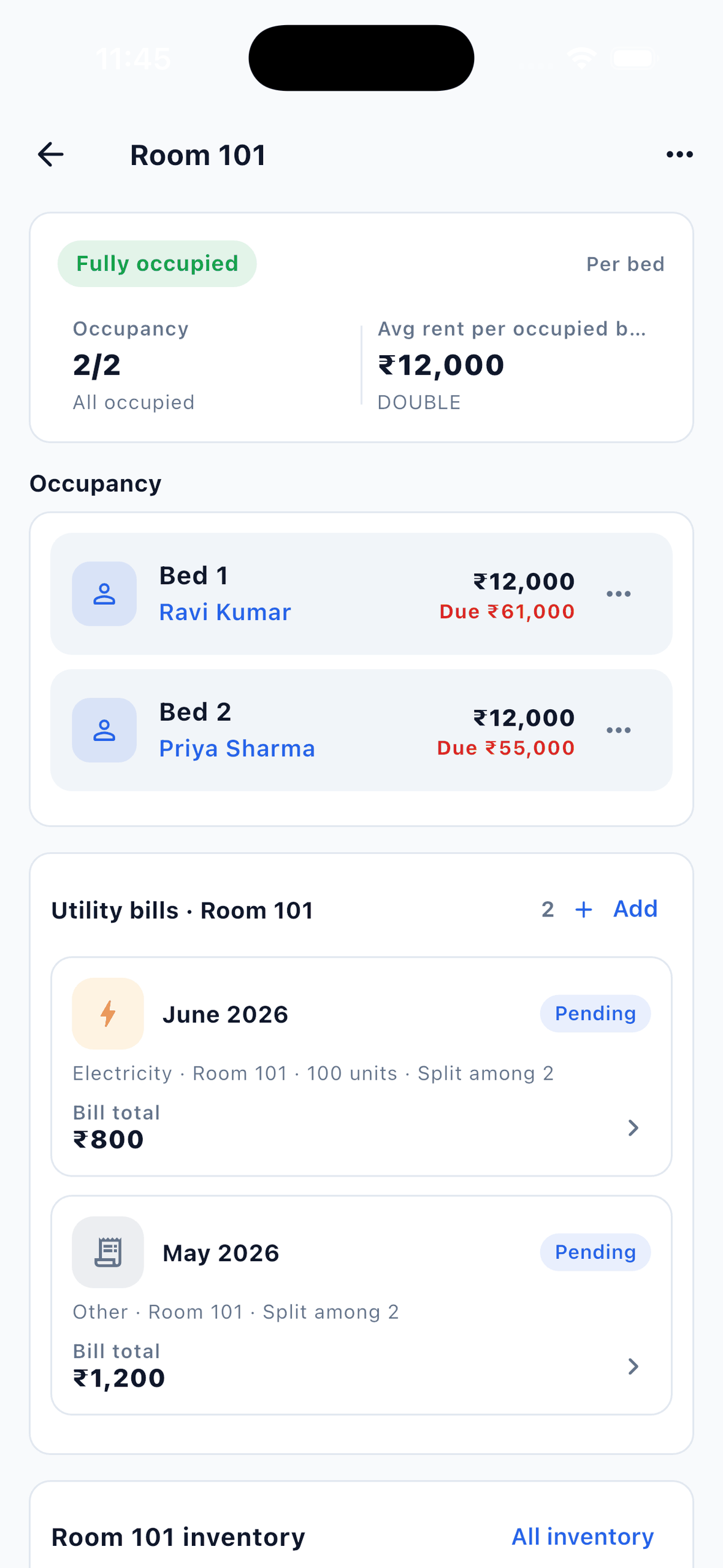
In EasyAavaas, beds are created with each room and a bed becomes occupied when you assign a tenant to it. Each room’s status (vacant, partly occupied or fully occupied) updates on its own as tenants move in and out, rooms can be marked under maintenance, and each room is set to per-bed or whole-room billing. The owner dashboard shows the occupancy rate, and the monthly Property Summary report (Excel or PDF) lists occupied and vacant beds with the occupancy percentage.
The app shows current occupancy from those assignments. It does not calculate time-weighted bed-nights, and a bed cannot be reserved or blocked for a future tenant, so use this calculator for monthly comparisons. See room and bed occupancy tracking and the step-by-step PG occupancy tracking guide. EasyAavaas is free forever for owners, staff and tenants.
Common questions
What is a good occupancy rate for a PG?
There is no single correct figure; it depends on your location, season, rent and room mix. Compare your own months using the same method, and look at vacant beds by sharing type to see where the gap is.
Should I count a tenant who has given notice?
Yes, until the day they leave. Count a bed as occupied while a current tenant stays in it. A booked tenant who has not moved in does not count yet.
How do I treat a bed that is under repair?
Leave it out of beds available to rent for as long as it cannot be let. For a monthly figure, enter the nights it was closed as bed-nights out of use, so the denominator shows only beds you could actually fill.
Which should I report: snapshot or time-weighted occupancy?
Use the snapshot for today’s vacancy work, such as which beds to advertise. Use time-weighted occupancy to compare months, because it counts how long beds stayed empty, not just the count on one date.
Does EasyAavaas calculate occupancy for me?
Yes, from bed assignments. Room status updates automatically as tenants move in and out, the dashboard shows the occupancy rate and the Property Summary report lists occupied and vacant beds. It shows current occupancy; it does not calculate time-weighted bed-nights.
Free forever for PG owners
See every vacant bed without counting.
EasyAavaas tracks rooms and beds as tenants move in and out, with occupancy on the dashboard and in monthly reports. Free forever for owners, staff and tenants.